DXF
DXF File Quality Checklist — 8 Things to Look For Before Buying
How to evaluate DXF file quality before you buy. 8 specific things that separate professional cut-ready files from amateur traces. Save hours of CAM repair work.
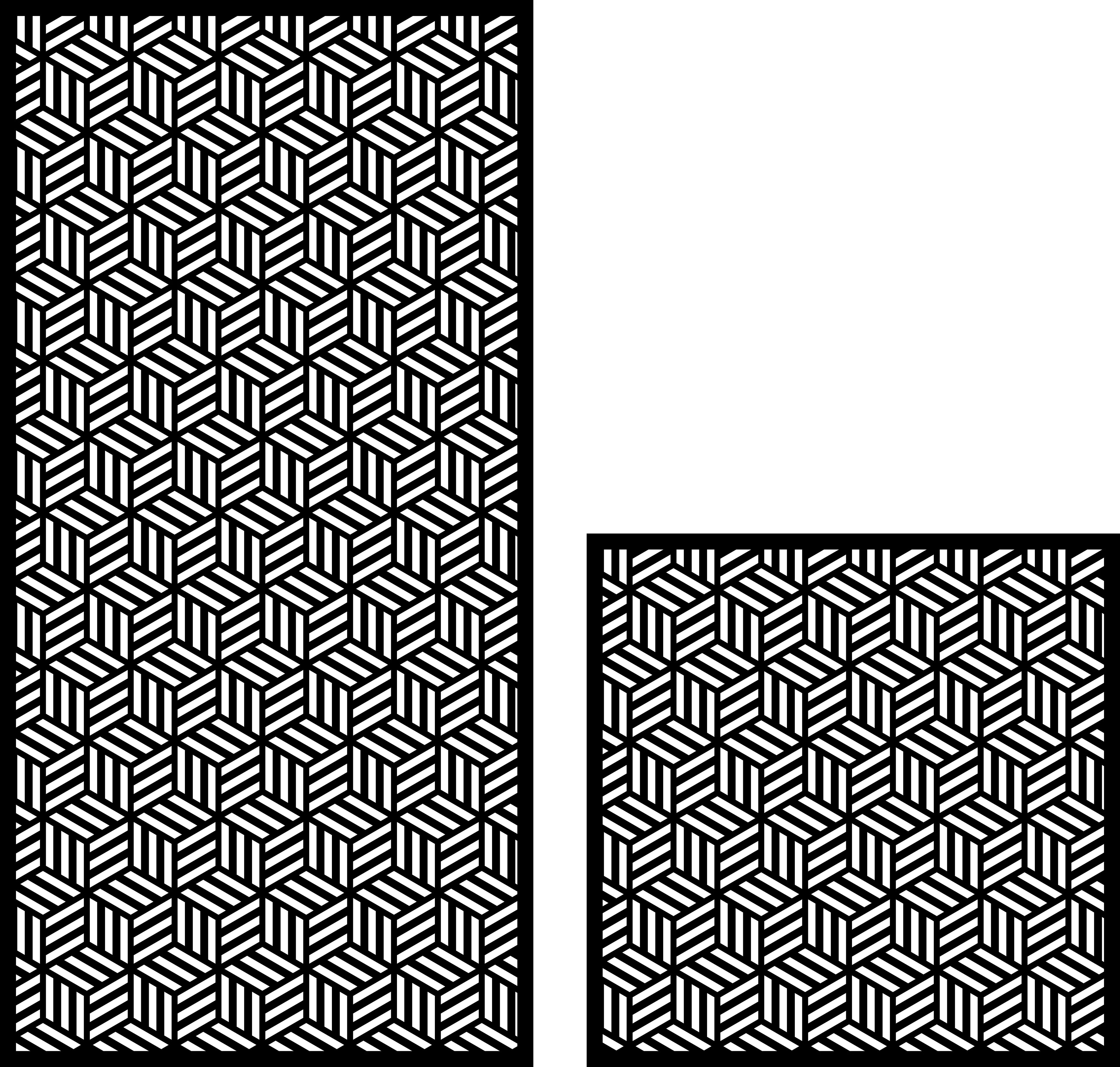
You search “geometric DXF panel” and get 500 results. They range from $1.99 to $19.99. The previews all look fine in the thumbnail. So which do you buy?
Here’s the thing: DXF file price has almost no correlation with quality. We’ve seen $19.99 files that needed 2 hours of repair to become cuttable. We’ve seen $2 files that cut perfectly first try. The difference comes down to 8 specific quality markers — most of which the seller never mentions, but you can spot in the preview or sample file.
This is your buyer’s checklist. Run through these 8 questions before paying for any DXF file, and you’ll never again waste an evening fixing geometry.
1. Are paths closed?
What to check: Open the DXF in a viewer (e.g., LibreCAD or eDrawings). Select the geometry. Look for “open paths” indicator.
Why it matters: Laser controllers want CLOSED loops to fill, fill-cut, or properly close. Open paths cut as outlines only — your “panel” becomes a bunch of disconnected line drawings.
Red flag: Description mentions “convert to polylines before cutting” or “you may need to close some paths.” This means the seller knows their file has open paths and is making it your problem.
Green flag: Description explicitly states “all paths closed” or “production-tested.”
2. Is kerf compensation accounted for?
What to check: Look at internal cuts (slots, holes, openings). Are they all oversized by a consistent amount (~0.1-0.2 mm)?
Why it matters: Every laser beam has finite width (kerf). If the designer didn’t account for kerf, your 10mm slot cuts as 10.3 mm and your inserts don’t fit. If they baked in 0.1mm kerf compensation, you get exact dimensions.
Red flag: Description says “you may need to adjust kerf in your CAM software.” Means: it’s not done.
Green flag: Description explicitly says “0.1 mm kerf offset baked in” or “kerf-aware geometry.”
3. Is path direction normalized?
What to check: Use LibreCAD’s “show direction” tool. External outlines should be counter-clockwise (CCW). Internal cuts should be clockwise (CW).
Why it matters: Path direction tells your CAM software which side of the line to offset for kerf compensation. Wrong direction = compensation on the wrong side = slots shrink instead of grow.
Red flag: Mixed/random path directions (typical of files traced from raster images).
Green flag: Consistent direction throughout. Many sellers don’t mention this — but you can spot it easily in any free DXF viewer.
4. Is geometry layered properly?
What to check: Does the DXF have multiple layers (e.g., CUT, ENGRAVE, REFERENCE), or is everything on “Layer 0”?
Why it matters: Modern laser controllers map layers → operations (cut-through power, engrave power, reference outline that doesn’t cut). A flat single-layer file forces you to manually re-layer everything in CAM.
Red flag: “Everything on Layer 0” = 30 minutes of manual layer assignment per file.
Green flag: “Pre-layered for LightBurn / RDWorks compatibility” or similar specific mention.
5. Are bridges added to internal cuts?
What to check: Look at intricate internal patterns. Do you see thin “bridges” connecting elements that would otherwise fall out during cutting?
Why it matters: Cut a circle out of a panel without bridges = the cut piece falls into your machine bed during cutting. Cut it WITH 2mm bridges at structural points = the piece stays in place, you snap it out after.
Red flag: Intricate panel design with NO bridges visible. Either the seller doesn’t know what bridges are (= probably traced from a stock photo), or they expect you to add bridges yourself in CAM (10-30 min per file).
Green flag: Description mentions “bridged geometry” or “structural tabs included.”
6. Are duplicate entities removed?
What to check: Run LibreCAD’s “remove duplicates” command. Did it find anything to remove?
Why it matters: Duplicate overlapping paths = double-cuts in same place = wasted time, faster consumable wear, occasional weird edge artifacts.
Red flag: “Remove duplicates” finds 100+ entities to remove on a single design. That file was traced sloppily or stitched together from multiple sources.
Green flag: Clean file — “remove duplicates” finds nothing or near-nothing.
7. Does scale make sense?
What to check: Measure a known reference (a window in a panel, the overall outline). Does it match what the description claims?
Why it matters: DXF doesn’t enforce units. Some files are saved at “100” for what should be “100 mm”; some at “3.94” for the same panel (inches). Without verifying scale, you load a “600mm panel” that’s actually 1500mm.
Red flag: Description doesn’t state the file’s reference dimensions. Or states “scale to your needs” without giving a baseline.
Green flag: Description explicitly states “600 × 1200 mm at native size” with a labeled reference square inside the file.
8. Does the design preview match the actual geometry?
What to check: Compare the seller’s preview image to what you see when you actually open the DXF.
Why it matters: Some sellers use 3D-rendered preview images that don’t match the actual 2D DXF geometry. You bought a “stunning 3D wall sculpture” — opened the DXF — got a flat line drawing of the SAME design but rendered into 3D in their marketing image.
Red flag: Preview is a hyper-realistic 3D render with lighting effects. The DXF itself is 2D and cannot produce that look without significant post-processing.
Green flag: Preview is a black-and-white technical drawing OR a real photograph of an actual cut piece. Both indicate honesty about what the file delivers.
Bonus check — file size sanity
A clean optimized DXF panel design should be 100-500 KB. If you see a “simple” panel weighing 5+ MB, the file has:
- Embedded raster images (= they traced a photo)
- Thousands of duplicate entities
- Unused blocks and references that didn’t get cleaned up
Small file size = clean file = professional designer who finished the export properly.
The 30-second test
For ANY DXF you’re considering buying:
- Open the preview/free sample in eDrawings or LibreCAD
- Hit “select all” — see if everything highlights cleanly
- Look for open paths warning (red highlighting in most viewers)
- Measure a known feature — does scale match the listing?
- Run “remove duplicates” — does it clean up a mess?
If all 5 check out, the file is probably professional. If any fail, look elsewhere.
How DXFForge files are quality-controlled
Every file in our catalogue goes through this exact 8-point checklist before publication:
| Check | Standard |
|---|---|
| Closed paths | ✓ 100% — verified before publication |
| Kerf offset | ✓ 0.1 mm baked in for fiber laser |
| Path direction | ✓ Normalized (external CCW, internal CW) |
| Layers | ✓ CUT / ENGRAVE / REFERENCE split |
| Bridges | ✓ Added to all intricate cuts where needed |
| Duplicates | ✓ Purged via LibreCAD before export |
| Scale | ✓ mm units, reference square included |
| Preview accuracy | ✓ Preview is rendered FROM the actual DXF |
That’s why customers don’t get refund requests for “this file is broken.” That work is already done.
TL;DR — the 8 questions to ask before buying any DXF
- Are paths closed?
- Is kerf offset included?
- Is path direction normalized?
- Are layers organized?
- Are bridges added where needed?
- Are duplicates removed?
- Does scale make sense?
- Does preview match actual geometry?
8/8 → safe buy. 5-7/8 → workable but expect repair time. < 5/8 → walk away. The savings aren’t worth the hours.
Save this checklist. Use it next time you’re tempted by a cheap “geometric DXF bundle on sale.” Your future self (the one who would’ve spent Saturday fixing geometry) will thank you.
Designs mentioned in this article


More articles
House Signs
10 Best DXF Designs for Modern House Signs & Address Plaques
Curated list of the 10 best DXF designs for house signs and address number plaques. Modern styles, material recommendations, install tips. Ready to cut on fiber laser or plasma.
June 8, 2026
Wall Clocks
10 Best DXF Designs for Metal Wall Clocks (Laser & Plasma Cut)
Discover the 10 best DXF wall clock designs for laser and plasma cutting, plus motor sizing, hole specs, and material tips to sell them fast.
August 27, 2026
Design Roundup
10 Best DXF Designs for Modern Fence Panels (Fiber Laser & Plasma)
Hand-picked DXF designs that look stunning as decorative fence inserts. Cut on fiber laser or plasma in 2-3 mm steel, no rescaling needed, ready in 30 minutes.
May 24, 2026